
Direct answer
To apply for a nonprofit Google Ad Grant, first confirm your organization's eligibility and request a Google for Nonprofits account. After verification, prepare your website, open Google Ad Grants inside your nonprofit account, and submit the activation request.
The important distinction: approval for Google for Nonprofits does not automatically activate your Ad Grant. They are separate steps. Google explains the enrollment process here.
This guide focuses on U.S. nonprofits, including organizations in Minneapolis, St. Paul, and across Minnesota. Organizations outside the U.S. should check Google's requirements for their country before applying.
What is the nonprofit Google Ad Grant?
Google Ad Grants provides qualifying nonprofits with up to $10,000 USD per month in Google Search advertising. It is advertising credit, not cash your organization can withdraw or spend elsewhere.
The grant supports text-based Search ads that can help people discover your programs, volunteer opportunities, donation pages, and educational resources. It does not fund Facebook ads or YouTube video advertising.
Unused credit does not roll over, and Google does not require you to spend the full allowance each month. Approval also does not guarantee that your campaigns will use the full budget or produce donations. See Google's Ad Grants FAQs.
Step 1: Check whether your nonprofit is eligible
For U.S. organizations, Google requires IRS-recognized 501(c)(3) status or qualifying group exemption with proven affiliation to a central nonprofit. A fiscally sponsored organization without its own 501(c)(3) status is currently ineligible.
Government organizations, hospitals and healthcare organizations, and schools or universities are excluded. However, qualifying charitable arms or foundations associated with healthcare organizations and philanthropic arms of educational organizations may be eligible.
State nonprofit registration alone does not establish eligibility. Check your organization's status against Google's U.S. eligibility guidelines before investing time in the application.
Step 2: Gather your organization information
Have these details ready:
- Your nonprofit's official registered name.
- Its Employer Identification Number, or EIN.
- Your website address.
- A Google Account controlled by an authorized representative.
- Registration documents and information confirming your connection to the organization, if requested during verification.
For U.S. nonprofits, the EIN can be found on the IRS determination letter, tax filings, or official registration documents. Google's registration-number guide explains which identifier to use.
As a practical safeguard, use an account your organization can continue accessing if a staff member or volunteer leaves. Record who manages the application and who will monitor verification emails.
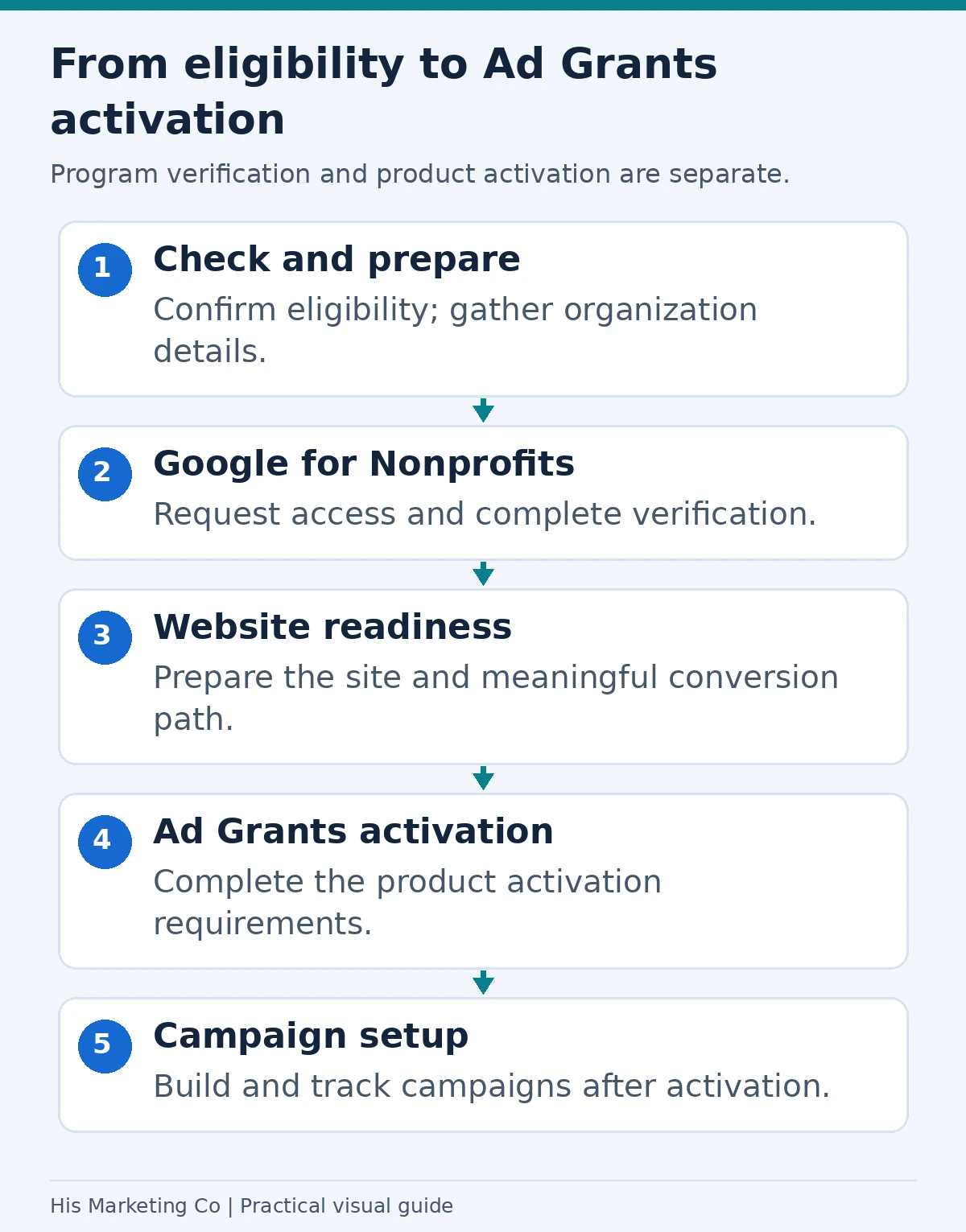
Application overview: verify eligibility and organization access, complete Google for Nonprofits verification, prepare the website, then complete Ad Grants activation. Program verification does not itself activate the grant. Google’s getting-started guide.
Step 3: Apply for Google for Nonprofits
Visit Google for Nonprofits and choose Get started. Follow the prompts to find or enter your organization and request an account.
If your organization already has an account, follow the access-request process instead of starting another application.
Google's verification partner, Goodstack, checks the organization and your affiliation with it. Respond to requests for additional information and check your spam folder while the application is pending.
Google's overall enrollment guide says most requests are reviewed within 2 to 14 business days. This is a review estimate, not a guaranteed completion date. Ad Grants activation happens afterward and has its own review. See Google's enrollment guide.
Step 4: Prepare your website for Ad Grants review
Your nonprofit must control the website's content and technical settings. The submitted domain must host your organization's website, rather than redirecting visitors to a social profile or third-party donation platform. A .org domain is not required.
Before submitting, check that your website:
- Uses HTTPS throughout.
- Clearly explains your mission, activities, and the people you serve.
- Has substantial, original content about the organization and its programs.
- Has working menus, links, forms, and donation buttons.
- Loads quickly and works on mobile devices.
- Focuses on your nonprofit mission and complies with Google's commercial-content restrictions.
A practical starting point is to review your homepage, About page, program pages, and Contact page from the perspective of someone who has never heard of your organization.
These checks summarize Google's website policy. If your website has already been rejected, our guide to fixing Google Ad Grants website rejections can help you plan the next review.

Step 5: Submit your Google Ad Grants activation request
After Google for Nonprofits approval:
- Sign in to your Google for Nonprofits account.
- Choose Get started under Google Ad Grants.
- Enter the website your organization will use for the grant.
- Watch the welcome video and confirm completion using the checkbox.
- Choose Submit activation request.
Google's current instructions say the review may take several business days. Watch for an email with the decision and next steps.
Do not create a Google Ads account during the activation process. Google says it will provide the account at activation. Use the same Google Account associated with your Google for Nonprofits application. Additional users can be invited afterward.
Follow Google's current Ad Grants activation instructions if an older tutorial shows different screens or steps.
Step 6: Build campaigns around meaningful actions
Once activated, decide what you want visitors to do before choosing keywords. Useful goals might include a completed volunteer application, program inquiry, newsletter signup, or donation. For planning donation-focused campaigns after approval, see our guide to Google Ad Grants for nonprofit donations.
For example, a Twin Cities nonprofit recruiting volunteers could start with a specific volunteer opportunity page and keywords connected to that activity. Sending every visitor to the homepage makes it harder to match their search with a clear next step.
Set up conversion tracking before using campaign results to judge success. Our guide to tracking Google Ads calls and form submissions explains the underlying measurement process, which can be adapted to nonprofit inquiries.
Ongoing management matters. Google's account policy requires appropriate geographic targeting, at least two unique sitelink assets, and valid conversion tracking. New accounts must use conversion-based Smart Bidding unless using Smart campaigns. Accounts that are not exclusively using Smart campaigns must maintain a monthly account-level click-through rate of at least 5%; missing that threshold for two consecutive months can lead to temporary deactivation. Review Google's account management policy.
Common application mistakes to avoid
| Mistake | Better next step |
|---|---|
| Treating nonprofit verification as Ad Grants approval | Submit the separate Ad Grants activation request after verification. |
| Following an old tutorial that tells you to create an Ads account first | Use Google's current activation instructions and wait for the provided account. |
| Applying with unfinished pages or broken donation links | Review and repair the website before submitting it. |
| Missing verification emails | Assign one person to monitor the application and respond promptly. |
| Assuming the grant will automatically generate donations | Plan relevant campaigns, useful landing pages, and conversion tracking. |
Need help getting your nonprofit ready?
Start with eligibility and website readiness, then work through verification and activation in order. Before launching campaigns, decide which actions will make the advertising useful to your mission.
His Marketing Co can help with nonprofit marketing and Google Ad Grants support, including preparing your website and planning how to measure results.
Methodology
We reviewed Google's official eligibility guidelines, enrollment and activation instructions, website requirements, and account management policies on October 2, 2026. This guide focuses on U.S. nonprofits and also draws on His Marketing Co's experience helping nonprofits apply for Google Ad Grants.
Google's documentation is the source for program requirements and review estimates. Practical recommendations reflect our experience helping organizations prepare for the application process. We did not independently measure approval times for this article. Google may update its requirements and activation screens.